2.7. Results
From the jumpbox open a terminal emulator window (black square icon with $ on the bottom application bar), and perform several recursive queries to your new listener to test.
Repeat some of the same queries multiple times
dig www.f5.com
dig www.wikipedia.org
dig www.umich.edu
dig www.example.com
Viewing Cache Statistics
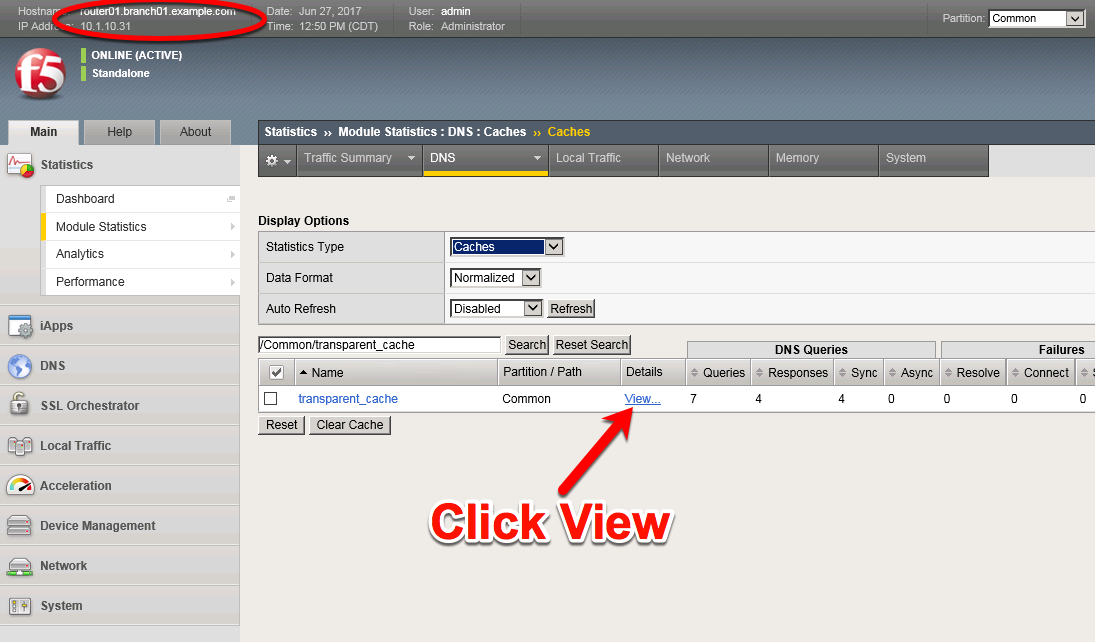
Navigate to: Statistics ›› Module Statistics : DNS : Caches ›› Caches and then choose Caches from the ‘Statistics Type’ drop-down.
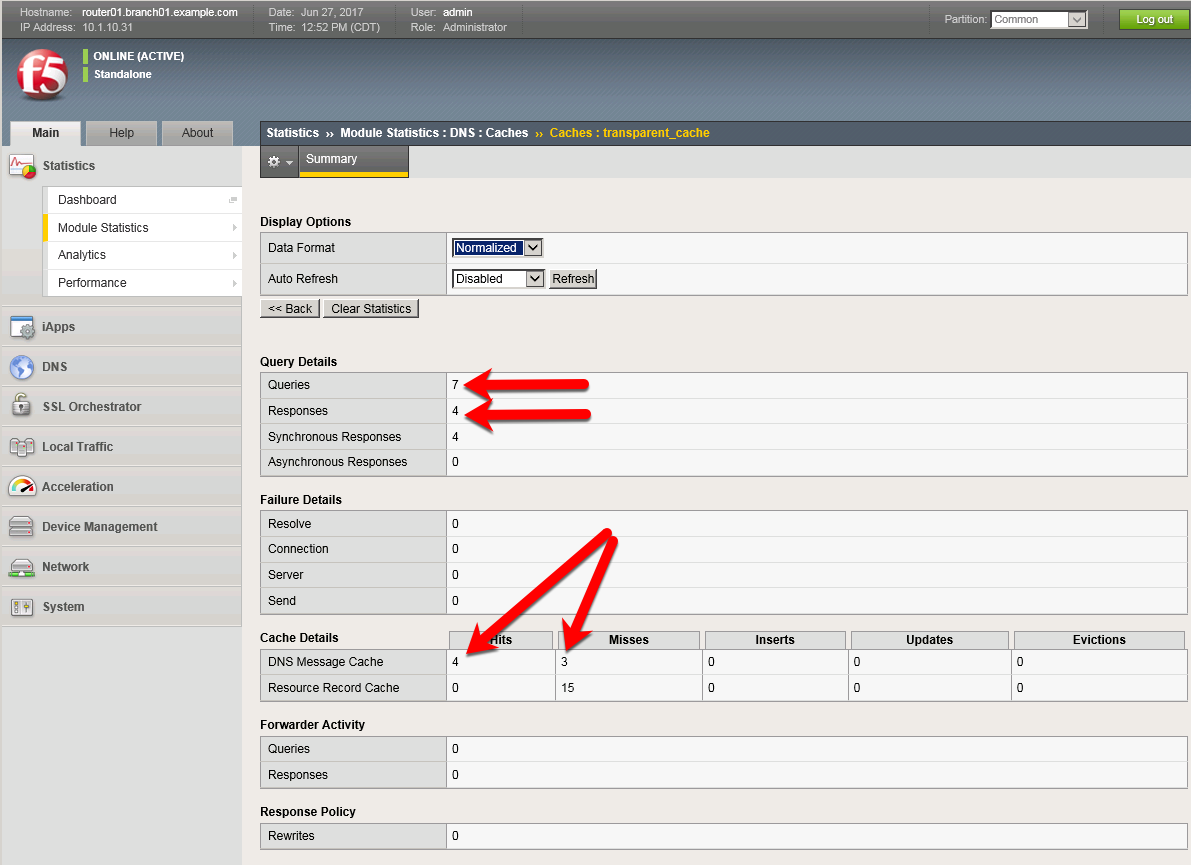
Examine the Query, Failure, and Cache details below.
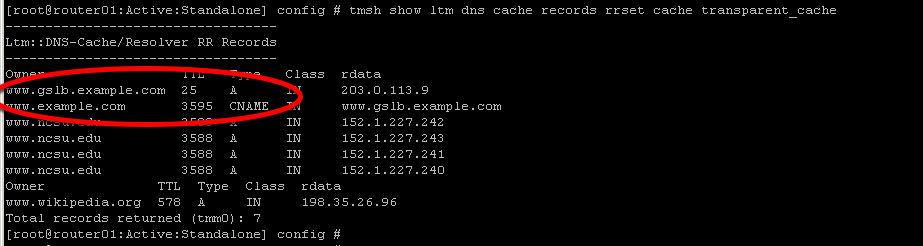
Login to router01 (bigip) using Putty from your application bar at the bottom of your desktop. You can view the contents of the cache with the following TMSH command:
TMSH
tmsh show ltm dns cache records rrset cache transparent_cache
To view the cache statistics similar to what you saw in the GUI you can use:
TMSH
tmsh show ltm dns cache transparent transparent_cache
Clearing Entire Cache
Navigate to Statistics > Module Statistics > DNS > Caches
Set “Statistics Type” to “Caches”.
Select the cache and click “Clear Cache” to empty the cache. Note, this will clear the actual DNS cache on the BIG-IP. If you want to clear the cache statistics, select the cache and hit the Reset button.